産業用ディスプレイOEM機器サプライヤーバイヤガイド

はじめに ヒューマン・マシン・インターフェース(HMI)は、現代の産業機器の標準的な構成要素となっている。ディスプレイにより、オペレーターは以下のことが可能になる。 ...
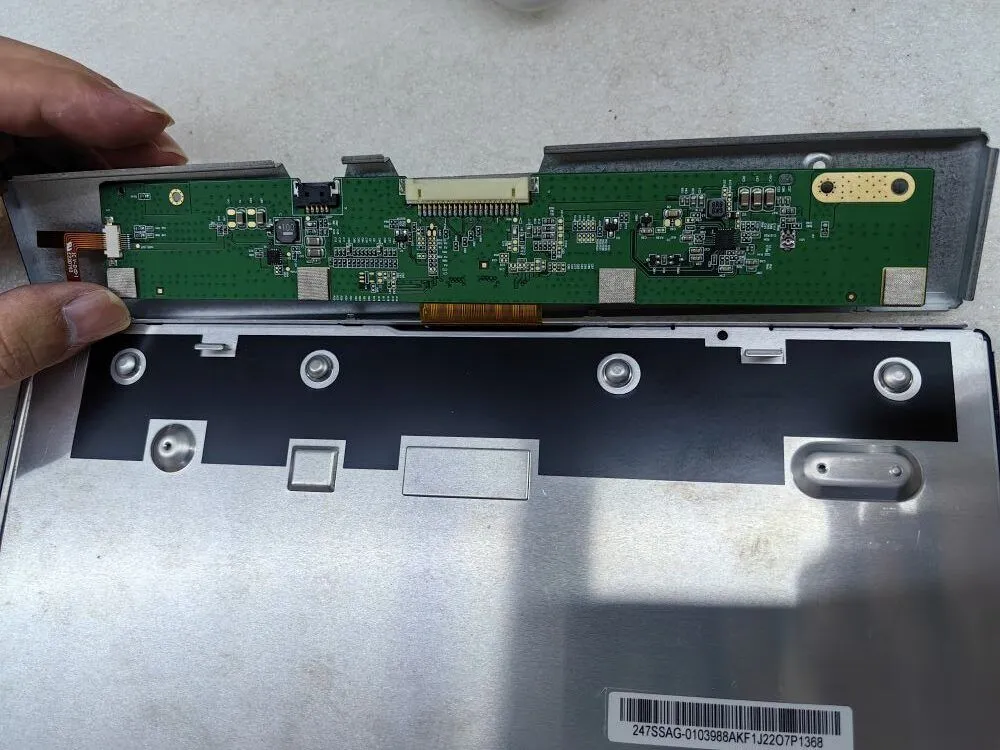
特に、シームレスな操作が重要なときに、モニターに黒い画面が表示されたり、画像が表示されなかったりすると、イライラすることがあります。.
あなたが技術的な専門知識を持つIT専門家であれ、信頼できるディスプレイ・ソリューションの調達を担当する調達担当者であれ、これらの問題の効果的なトラブルシューティング方法を知ることは不可欠です。.
このトラブルシューティングガイドでは、モニターの黒い画面や画像が表示されない問題の根本的な原因を体系的に診断するための貴重なヒントと戦略を提供します。これらのガイドラインに従うことで、問題を迅速に特定して対処し、中断のない生産性と最適なパフォーマンスを確保することができます。.
バックライトは点灯していますか?もしそうなら、定電流ボードは正しく機能している可能性が高い。.
モニターに黒い画面や画像が表示されない場合のトラブルシューティングでは、まずバックライトの照度を調べます。バックライトが明るく、期待通りに機能している場合、バックライトを調整する定電流ボードが正常に動作している可能性が高いことを示しています。しかし、バックライトが点灯していない場合は、次のステップに進んで問題を特定し、解決してください。.
LCD部品に焦げや破損の形跡はありませんか?
モニターに黒い画面が表示されたり、画像が表示されなかったりするのを解決するために、2つ目の重要なステップでは、液晶ディスプレイの部品を徹底的に調べます。焦げや破損の兆候がないか、よく調べてください。これには、焦げた部分、変色したコンポーネント、または過熱の目に見える兆候が含まれる場合があります。.
このような損傷を特定することで、問題の根本的な原因について重要な洞察を得ることができます。LCD部品に損傷が見られる場合は、速やかに交換することをお勧めします。ただし、LCD部品に異常がないようであれば、以降のトラブルシューティングの手順に進んでください。.
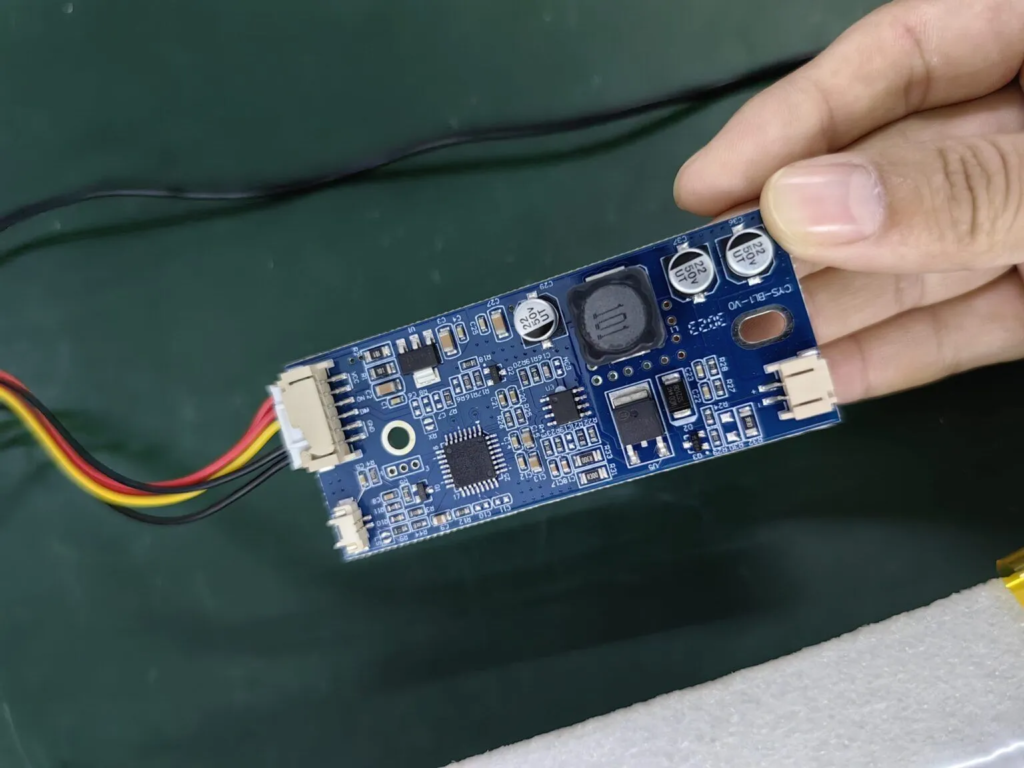
LCD部品に焦げや破損の形跡はありませんか?
モニターに黒い画面が表示されたり、画像が表示されなかったりするのを解決するために、2つ目の重要なステップでは、液晶ディスプレイの部品を徹底的に調べます。焦げや破損の兆候がないか、よく調べてください。これには、焦げた部分、変色したコンポーネント、または過熱の目に見える兆候が含まれる場合があります。.
このような損傷を特定することで、問題の根本的な原因について重要な洞察を得ることができます。LCD部品に損傷が見られる場合は、速やかに交換することをお勧めします。ただし、LCD部品に異常がないようであれば、以降のトラブルシューティングの手順に進んでください。.
下の画像は、低電源電圧による部品の焼損の様子である。
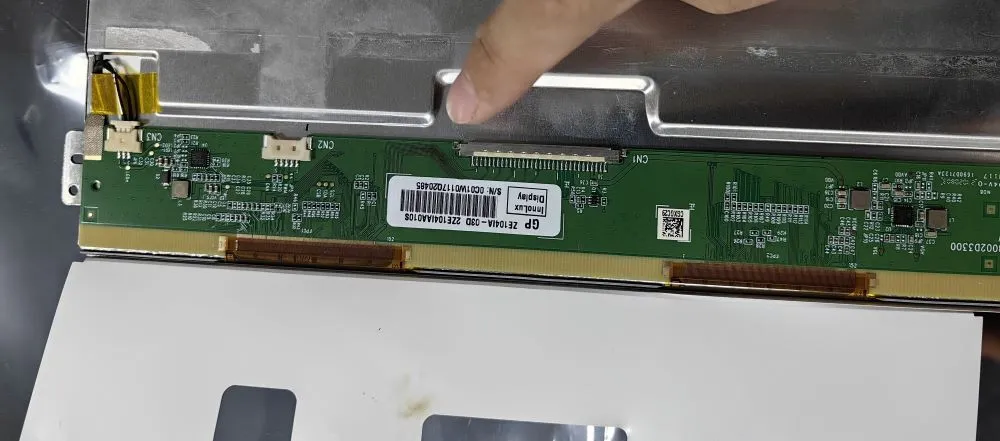
コネクターピンにずれがないか点検してください。ピンの位置がずれていると、画面が白くなったり、ディスプレイが歪んだりする可能性があります。.
モニターに黒い画面が表示されたり、画像が表示されない場合のトラブルシューティングでは、コネクターピンの状態を考慮することが不可欠です。ピンが正しく配置されているか、注意深く調べてください。ピンの位置がずれていると、接続がうまくいかず、白い画面や画面の歪みなどの問題につながることがあります。.
ピンの位置がずれているのを発見したら、そっとピンの位置を調整し、安全で正確な接続を復元してください。このように細部に注意を払うことで、ディスプレイの問題を効果的に解決できることがよくあります。しかし、ピンが正しく整列しているように見える場合は、さらなる診断と解決のために、次の手順に進んでください。.
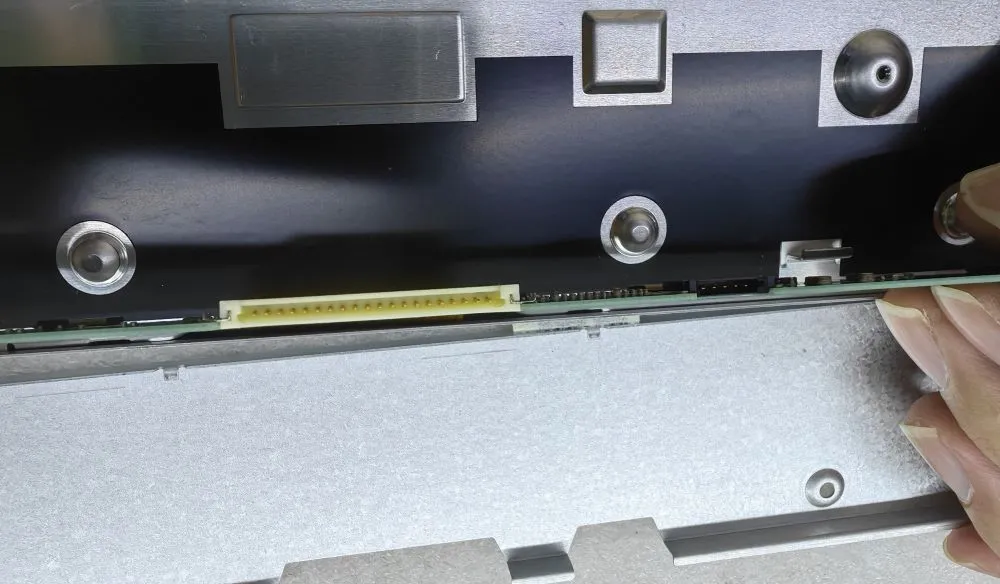
上記は、黒い画面や表示されない問題を確認するための主な3つのステップです。.
はじめに ヒューマン・マシン・インターフェース(HMI)は、現代の産業機器の標準的な構成要素となっている。ディスプレイにより、オペレーターは以下のことが可能になる。 ...
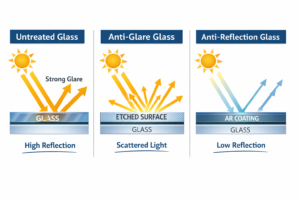
はじめに 産業用ディスプレイは、照明条件の制御が困難な環境に設置されることが多い。設備 ...
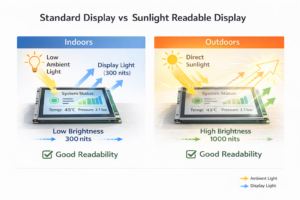
はじめに ディスプレイは、多くの種類の産業機器において重要なインターフェース・コンポーネントである。システム ...
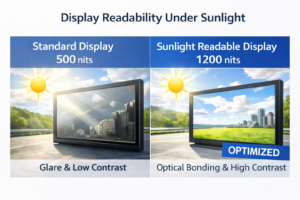
はじめに ディスプレイの視認性は、産業機器において非常に重要な設計パラメータである。オペレータはグラフィカル・インターフェース ...
アプリケーションの詳細をお送りください。構成の方向性と次のステップを返信します。.