OEM 장비를 위한 산업용 디스플레이 공급업체 구매자 가이드

소개 인간-기계 인터페이스(HMI)는 이제 최신 산업 장비의 표준 구성 요소입니다. 디스플레이를 통해 작업자는 다음을 수행할 수 있습니다. ...
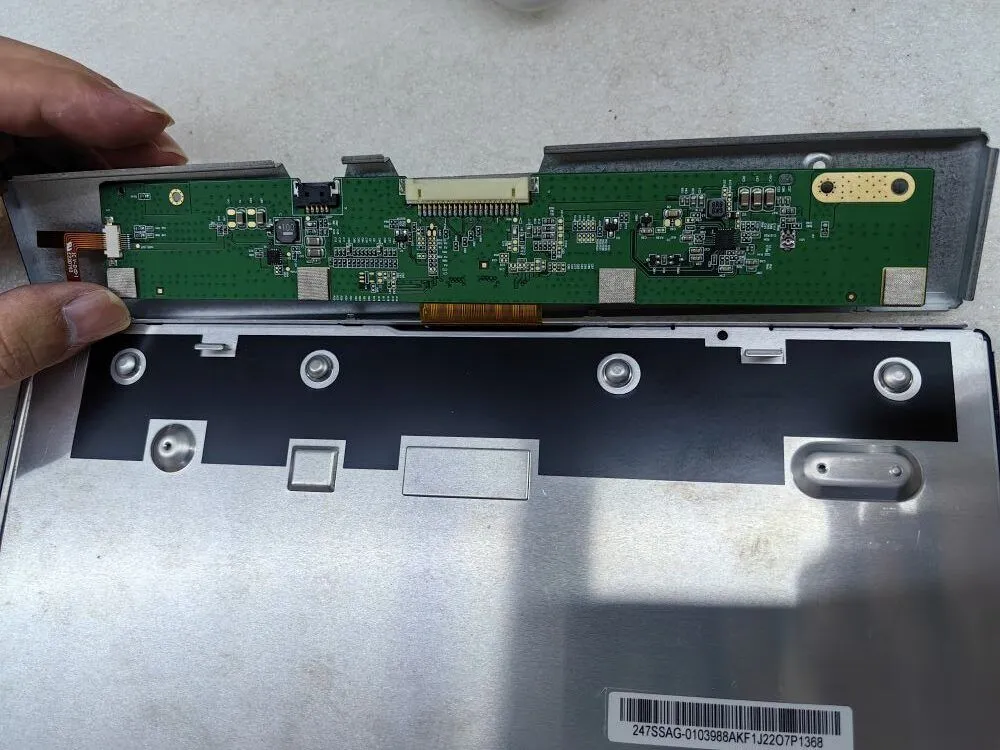
특히 원활한 작업이 중요한 상황에서 모니터에 검은 화면이 나타나거나 이미지가 보이지 않는다면 실망스러운 경험이 될 수 있습니다.
기술 전문 지식을 갖춘 IT 전문가든 신뢰할 수 있는 디스플레이 솔루션 조달을 담당하는 구매 담당자이든, 이러한 문제를 효과적으로 해결하는 방법을 아는 것은 필수입니다.
이 문제 해결 가이드에서는 모니터 블랙 스크린과 이미지 문제의 근본적인 원인을 체계적으로 진단할 수 있는 유용한 팁과 전략을 제공합니다. 이 가이드라인을 따르면 문제를 신속하게 파악하고 해결하여 중단 없는 생산성과 최적의 성능을 보장할 수 있습니다.
백라이트가 켜져 있나요? 그렇다면 정전류 보드가 올바르게 작동하는 것입니다.
모니터에 검은 화면이 나타나거나 이미지가 보이지 않는 문제를 해결하는 첫 번째 단계는 백라이트 조명을 검사하는 것입니다. 백라이트가 밝고 예상대로 작동한다면 백라이트 조절을 담당하는 정전류 보드가 정상적으로 작동하는 것일 가능성이 높습니다. 그러나 백라이트가 켜지지 않으면 다음 단계로 진행하여 문제를 정확히 파악하고 해결하세요.
LCD 부품이 타거나 손상된 흔적이 있나요?
모니터에 검은 화면이 나타나거나 이미지가 보이지 않는 문제를 해결하기 위한 두 번째 중요한 단계는 LCD 부품을 철저히 검사하는 것입니다. 타거나 손상된 요소가 있는지 육안으로 자세히 살펴보세요. 여기에는 탄 부분, 변색된 구성 요소 또는 눈에 보이는 과열 징후가 포함될 수 있습니다.
이러한 손상을 식별하면 문제의 근본 원인에 대한 중요한 통찰력을 얻을 수 있습니다. 손상된 LCD 부품이 발견되면 즉시 교체하는 것이 좋습니다. 그러나 LCD 구성품이 손상되지 않은 것처럼 보이면 다음 단계로 진행하여 추가 문제 해결을 시도하세요.
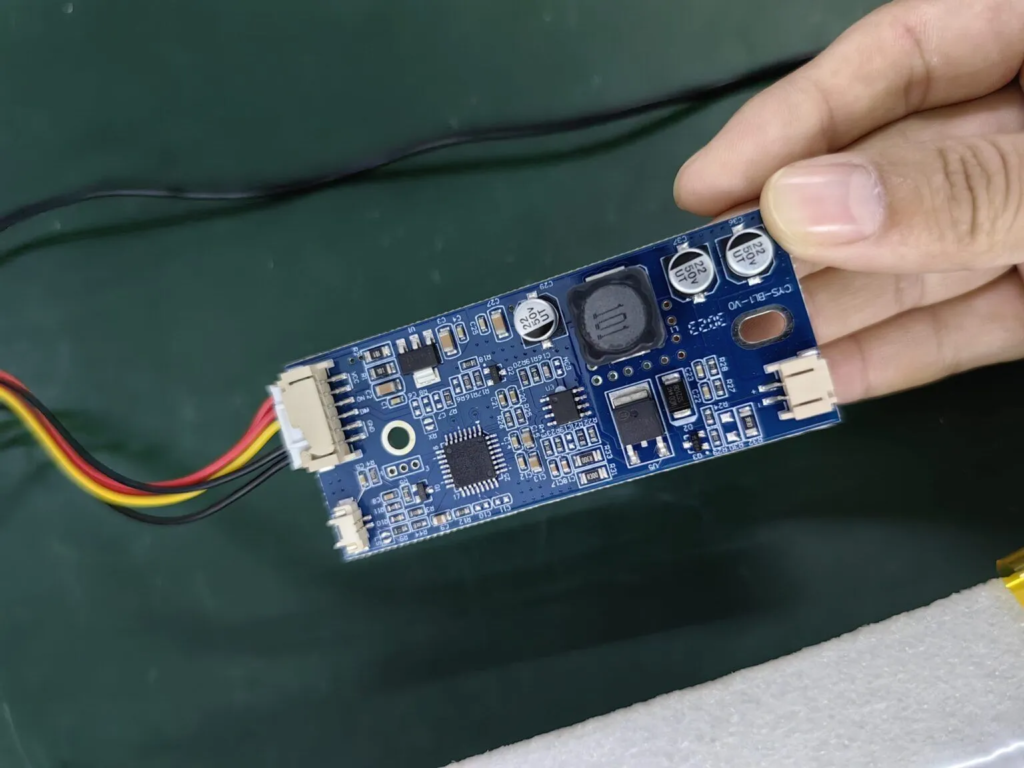
LCD 부품이 타거나 손상된 흔적이 있나요?
모니터에 검은 화면이 나타나거나 이미지가 보이지 않는 문제를 해결하기 위한 두 번째 중요한 단계는 LCD 부품을 철저히 검사하는 것입니다. 타거나 손상된 요소가 있는지 육안으로 자세히 살펴보세요. 여기에는 탄 부분, 변색된 구성 요소 또는 눈에 보이는 과열 징후가 포함될 수 있습니다.
이러한 손상을 식별하면 문제의 근본 원인에 대한 중요한 통찰력을 얻을 수 있습니다. 손상된 LCD 부품이 발견되면 즉시 교체하는 것이 좋습니다. 그러나 LCD 구성품이 손상되지 않은 것처럼 보이면 다음 단계로 진행하여 추가 문제 해결을 시도하세요.
아래 이미지는 낮은 공급 전압으로 인해 연소된 구성 요소의 모습을 보여줍니다.
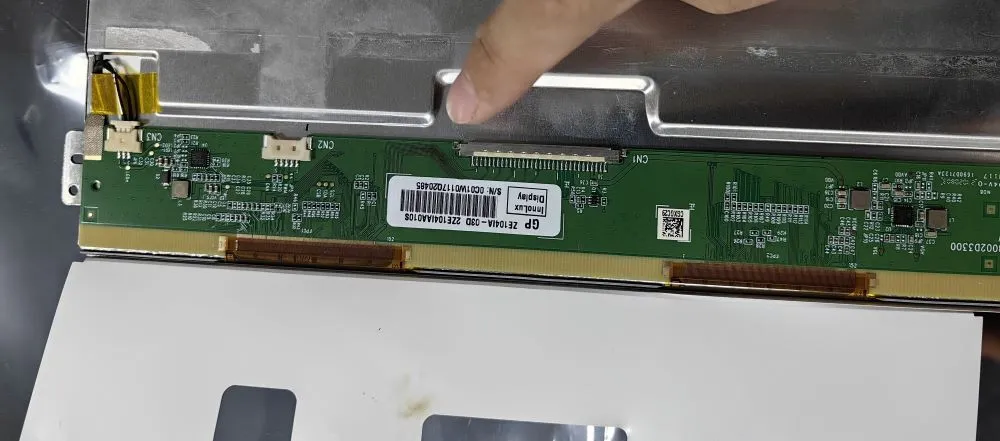
잠시 시간을 내어 커넥터 핀이 잘못 정렬된 흔적이 있는지 확인하세요. 핀이 잘못 정렬되면 흰색 화면이나 왜곡된 디스플레이와 같은 문제가 발생할 수 있습니다.
모니터에 검은 화면이 나타나거나 이미지가 보이지 않는 문제를 해결할 때 커넥터 핀의 상태를 고려하는 것이 중요합니다. 커넥터 핀이 제대로 정렬되어 있는지 주의 깊게 살펴보세요. 핀이 잘못 정렬되면 연결 상태가 좋지 않아 흰색 화면이나 화면 왜곡과 같은 문제가 발생할 수 있습니다.
핀이 잘못 정렬된 것을 발견하면 핀을 부드럽게 다시 정렬하여 안전하고 정확한 연결을 복원하세요. 이렇게 세심한 주의를 기울이면 디스플레이 문제를 효과적으로 해결할 수 있는 경우가 많습니다. 그러나 핀이 올바르게 정렬된 것처럼 보이면 다음 단계로 진행하여 추가 진단 및 해결을 시도하세요.
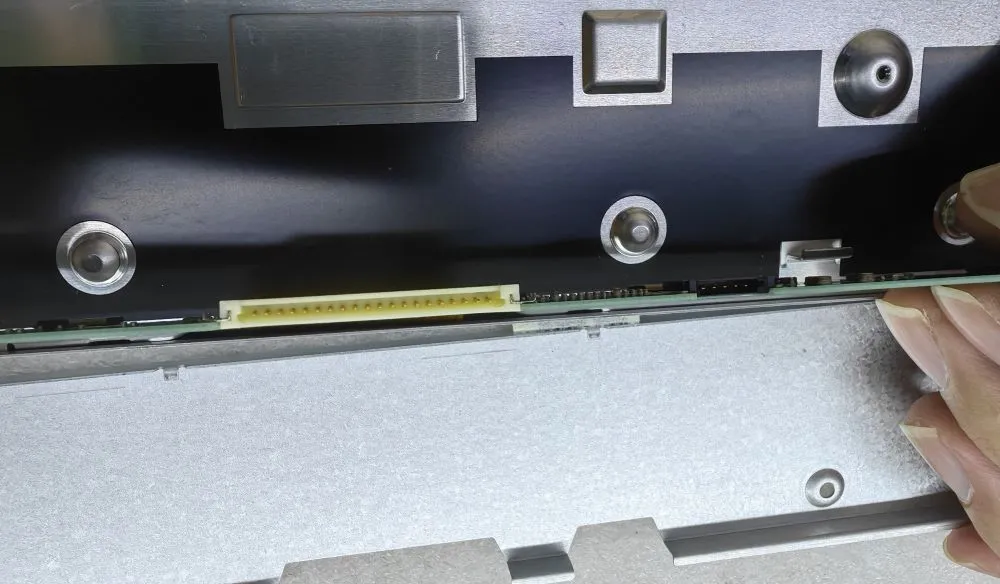
위는 검은 화면 또는 디스플레이 문제를 확인하는 주요 3단계입니다.
소개 인간-기계 인터페이스(HMI)는 이제 최신 산업 장비의 표준 구성 요소입니다. 디스플레이를 통해 작업자는 다음을 수행할 수 있습니다. ...
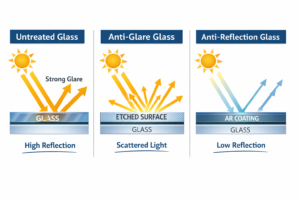
소개 산업용 디스플레이는 조명 조건을 제어하기 어려운 환경에 자주 배치됩니다. 장비 ...
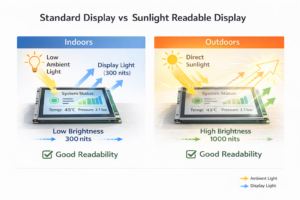
소개 디스플레이는 다양한 유형의 산업 장비에서 중요한 인터페이스 구성 요소입니다. 디스플레이는 시스템 ...
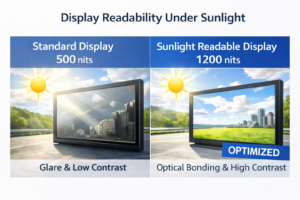
소개 디스플레이 가시성은 산업 장비에서 중요한 설계 매개변수입니다. 작업자는 그래픽 인터페이스에 의존합니다. ...
신청 세부 정보를 보내주세요. 구성 방향과 다음 단계로 답변해 드립니다.