What Is an Industrial Panel PC? Components, Types and Applications
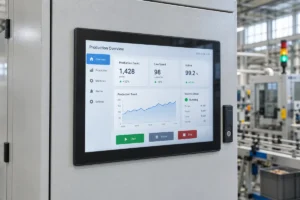
An industrial panel PC is a computer with a built-in display, usually a touchscreen, designed for …
Eagle Touch Engineering Team
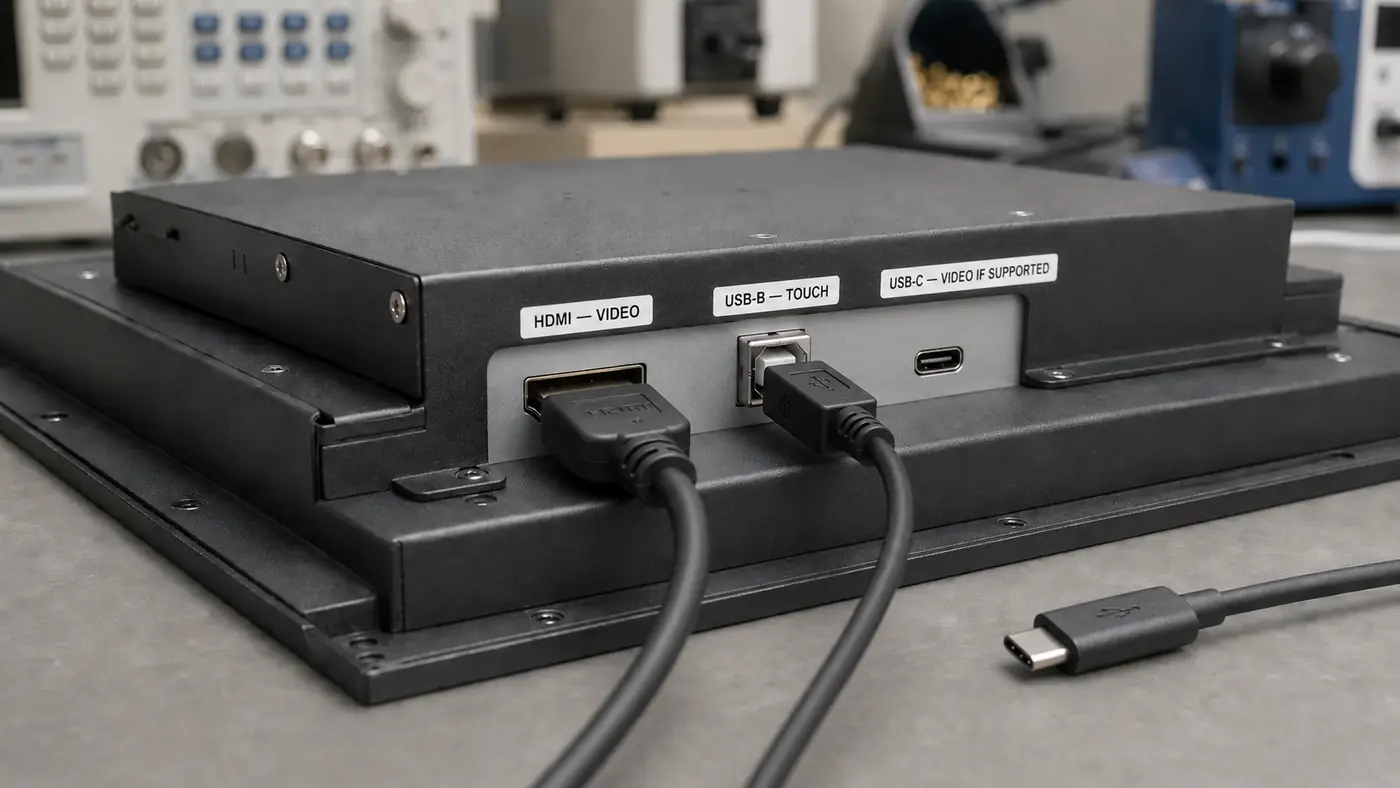
Sometimes, but the connector alone does not answer the question.
A standard USB-A port does not provide a native video signal. The USB-B port found on many industrial touch monitors normally carries touch data only. USB-C can carry video when the host, monitor and cable support the same display function, usually DisplayPort Alternate Mode. A DisplayLink adapter can also send an image through ordinary USB data, but it requires compatible hardware and a software driver.
For most industrial touch monitors, the normal connection is still:
If the touchscreen responds but the display shows “No Signal,” the USB touch connection is probably working. The video connection needs to be checked separately.
USB describes a family of connectors and data standards. It does not automatically mean that a port can receive video.
| Port on the monitor | Normal purpose | Can it receive an image? |
|---|---|---|
| USB Type-B | Touchscreen data to the host | No |
| USB Type-A | Service, firmware or peripherals | Usually no |
| USB-C for data or power only | Touch data, charging or service | No |
| USB-C with DisplayPort Alt Mode input | Native video and USB data; power may also be supported | Yes |
| DisplayLink-compatible USB input | Compressed display data decoded by the monitor or an adapter | Yes, with a driver |
Do not judge the port by its shape. Check the monitor specification or drawing for terms such as DP Alt Mode, USB-C video input, USB4 display support or DisplayLink. If the specification only says “USB touch,” that port does not replace HDMI or DisplayPort.
USB-C can combine video and USB data in one cable, but only when the complete connection supports it.
In a typical system, the host sends a DisplayPort signal through USB-C. The monitor must be designed to receive that signal, and the cable must support video and data. A charging-only cable will not work.
Confirm all three parts:
Having USB-C connectors on both devices is not enough. Two ports can look identical and support completely different functions.
DisplayLink does not send a native HDMI or DisplayPort signal through the USB cable. Software on the host processes the desktop image and transmits it as USB data. A DisplayLink chip in the adapter, dock or monitor decodes the data and delivers the image to the display.
This can connect a display through USB-A or through USB-C without DisplayPort Alt Mode. It is useful when the host has no spare native video output.
The trade-off is dependence on the operating system, driver and DisplayLink hardware. The screen may not show BIOS, boot or recovery information before the driver loads. DisplayLink is therefore better suited to secondary displays, service equipment or controlled PC systems than to a primary machine HMI.
Touch and video are separate signal paths, even when they belong to the same monitor.
The LCD controller receives the image through HDMI, DisplayPort, VGA or another video input. The touch controller sends coordinates to the host through USB or RS232. A working USB touch cable therefore proves only that the touch controller is communicating with the host.
If touch works but there is no image:
Changing the USB touch cable will not correct a missing HDMI or DisplayPort signal.
A passive USB-A-to-HDMI cable cannot convert ordinary USB data into an HDMI video signal.
The connection requires an active USB graphics adapter with its own conversion chip, commonly a DisplayLink-based product, plus the correct driver. The adapter direction also matters: a device designed to convert USB output from a computer into HDMI input for a monitor cannot be used in reverse.
An HDMI capture device is different again. It converts HDMI into USB video data for software on a computer. It does not turn a normal monitor USB port into a direct HDMI input.
Yes, if the host, monitor and cable are designed for all three functions.
Video normally uses DisplayPort over USB-C. Touch data uses the USB data connection. Power requires the correct USB Power Delivery direction, voltage and available wattage. A system may pass video and touch but still need a separate DC input because the host cannot supply enough power for the display at full brightness.
For an industrial project, verify:
Treat the approved USB-C cable as part of the production BOM. Replacing it with a similar-looking charging cable can remove video, reduce data speed or cause power problems.
For a fixed 24/7 machine, native HDMI or DisplayPort for video plus separate USB for touch remains the easiest arrangement to test and service.
Use USB-C when reducing the cable count has a real mechanical benefit and the equipment manufacturer controls the host, monitor, cable and power design. Use DisplayLink only when there is no suitable native video output and driver compatibility can be managed throughout the product life.
For a broader comparison of the available native interfaces, see HDMI vs DisplayPort vs USB-C for Industrial Displays.
Do not specify only “USB input.” State the exact function required.
Send the monitor supplier:
An industrial monitor can be configured with HDMI, DisplayPort, USB touch or a validated USB-C solution, but the interface must be matched to the complete system before production. The fact that a cable fits does not mean the connection can carry an image.
An industrial panel PC is a computer with a built-in display, usually a touchscreen, designed for …
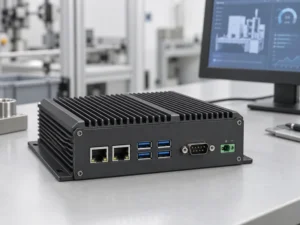
An embedded PC is a computer configured to work as part of a machine or larger …
Start with the software the panel PC must run and the conditions it must fit. Then …
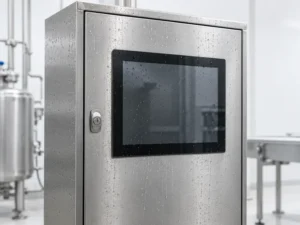
Choosing an industrial panel PC IP rating starts with two questions: what dust and water exposure …
Share your application, requirements, or current challenge. Our team will review the details and recommend a practical way forward.