What Is an Industrial Panel PC? Components, Types and Applications
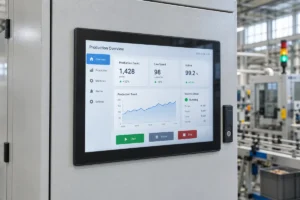
An industrial panel PC is a computer with a built-in display, usually a touchscreen, designed for …
Eagle Touch Engineering Team
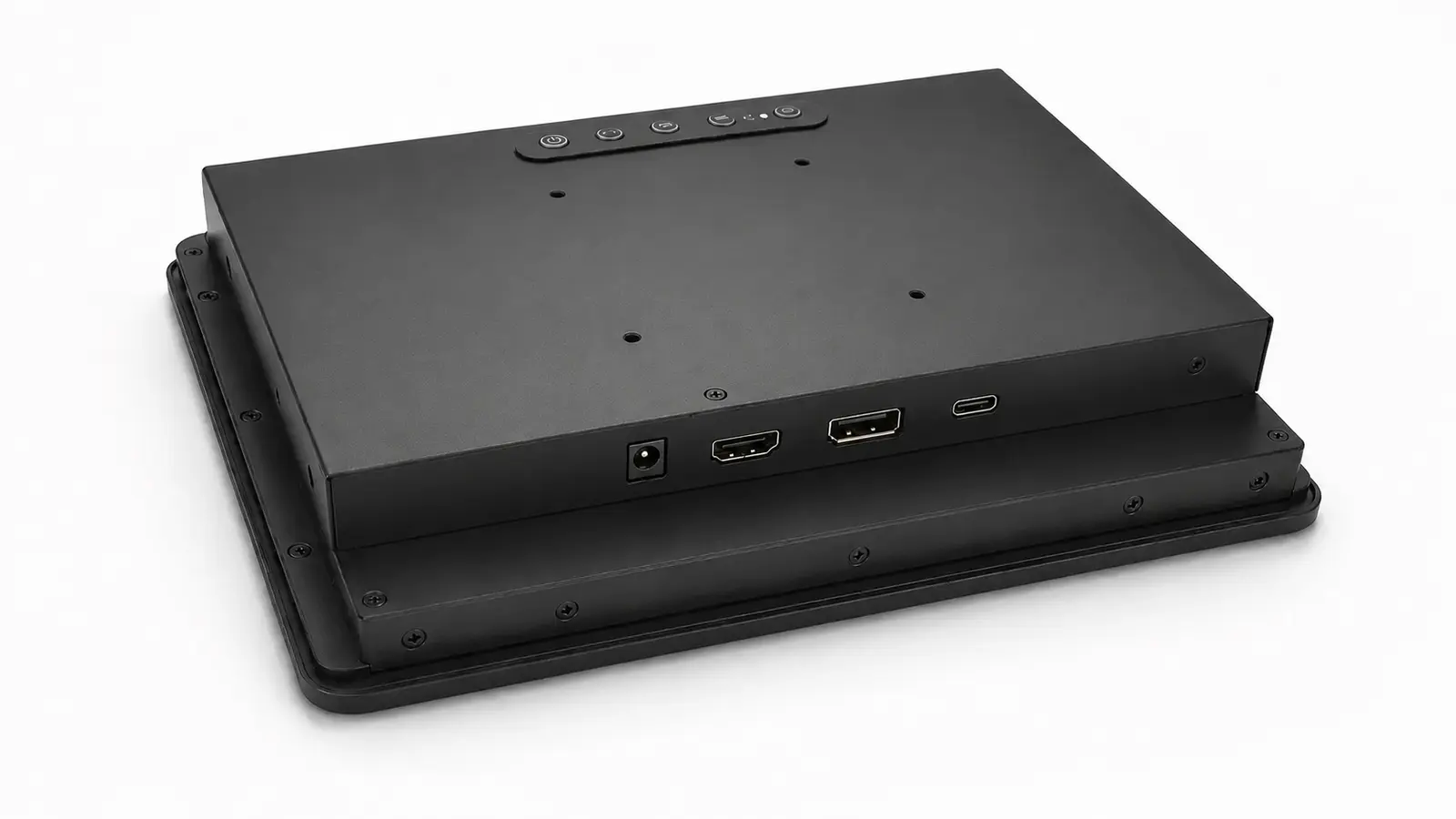
Customers often ask which display interface is the most reliable for industrial equipment. In practice, the host computer has usually made half of that decision already.
If the host provides a stable HDMI output, changing to DisplayPort or USB-C rarely improves the system. If an industrial PC already provides DisplayPort, converting it to HDMI adds another component to test and control. USB-C is worth considering when one cable genuinely simplifies the equipment and the OEM can approve the host, monitor, cable and power design together.
For most single-screen industrial machines, native HDMI with a separate USB touch connection remains the easiest arrangement to build, test and service.
| Project Situation | Practical Starting Point |
|---|---|
| Embedded controller with HDMI output | HDMI for video, USB for touch |
| Industrial PC or workstation with DisplayPort | Native DisplayPort |
| Compact terminal with one approved host | USB-C after complete system testing |
| Monitor used with different customer computers | HDMI and DisplayPort |
| Existing equipment with VGA or DVI | Keep the native interface or validate one fixed converter |
This article covers external connections between a host and a complete industrial display monitor. LVDS and eDP are internal connections between an LCD panel and a motherboard or display controller.
HDMI is common on embedded computers, industrial PCs, media players and single-board computers. Replacement cables and test equipment are also easy to find.
A typical industrial touch monitor uses three separate connections:
This is not the neatest cable arrangement, but it is easy to understand. If the image fails, the video path can be checked without disturbing the touch connection. If touch stops responding, the USB cable and touch controller can be tested separately.
Standard HDMI connectors do not lock in place. Equipment exposed to vibration, repeated maintenance or cable pull should use a cable clamp or strain relief.
The other point to test is startup behaviour. Some host and display-controller combinations work after reconnecting the HDMI cable but fail when both devices power up together. This is normally related to EDID exchange, hot-plug detection or controller initialization. A sample should be tested through repeated cold starts, power recovery, sleep and wake cycles.
DisplayPort is a natural choice when the system is built around an industrial PC, workstation or graphics platform that already provides DisplayPort output.
It is also useful for multi-display systems, although Multi-Stream Transport only works when the source, monitors and complete connection path support it. A DisplayPort connector alone does not guarantee daisy chaining.
Higher bandwidth is often presented as the main reason to choose DisplayPort. For a typical industrial HMI running at 1920 × 1080 and 60 Hz, bandwidth is rarely the deciding factor. Native host compatibility, connector retention and stable restart behaviour matter more.
Adapters need particular attention. DisplayPort-to-HDMI and HDMI-to-DisplayPort adapters are not automatically interchangeable. Direction, conversion electronics, supported timing and power requirements can differ. If the project needs an adapter, approve a specific model and keep it in the production BOM.
Some full-size DisplayPort plugs include a latch. Check the actual cable because not every connector uses the same retention design.
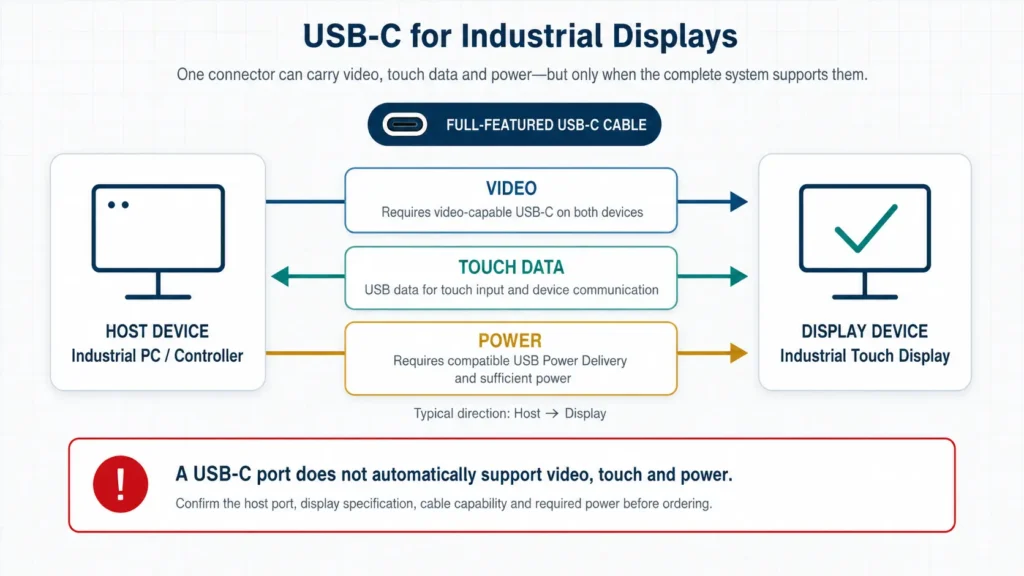
USB-C describes the connector. It does not tell you which functions the port provides.
A USB-C connection may carry:
It may also provide only USB data or charging. Two ports with the same shape can behave differently.
For video, the host normally needs DisplayPort Alternate Mode or a compatible USB4 implementation. The monitor must be designed to receive the corresponding signal, and the selected cable must support the required functions.
Touch introduces another data path. The display’s touch controller must communicate with the host through the USB connection. This communication is separate from the video signal even when both functions share the same cable.
Power requires its own confirmation. Before expecting USB-C to power the display, check:
USB-C works well in a closed OEM platform where the equipment manufacturer controls the host, monitor electronics, cable and firmware. It is less suitable when the monitor must accept unknown customer laptops, docking stations and replacement cables.
A standard USB-C plug also has limited mechanical retention. Use strain relief or an approved locking arrangement if the cable will be exposed to vibration or frequent movement.
If you need to determine whether an existing USB port can transmit video, see Can a USB Port Be Used as a Video Input for Industrial Monitors?
In field projects, the connector type is rarely the only cause of an unstable image. The complete connection needs to be reviewed.
Every converter, dock, splitter and extender adds another possible compatibility problem. Use the host’s native output whenever possible.
Two cables with the same connectors may support different bandwidth, USB data or Power Delivery functions. For USB-C projects in particular, the approved cable should be treated as a controlled component.
A display that works after manually reconnecting the cable may still fail after a power cut or host restart. Test the actual startup sequence used in the machine.
HDMI, DisplayPort and USB-C have different connector shapes, but none can compensate for poor cable routing. Provide clearance, strain relief and service access.
Voltage drops, shared power supplies, poor grounding and motor interference can appear to be video-interface failures. Measure the power reaching the display while the problem is present.
| Application | Recommended Direction | Why |
|---|---|---|
| Kiosk, EV charger or vending machine with native HDMI | HDMI + USB touch | Simple to integrate and replace |
| Factory workstation or inspection station | DisplayPort | Matches many industrial PC platforms |
| Multi-monitor control desk | DisplayPort after topology testing | Better suited to PC graphics systems |
| Compact OEM terminal with fixed hardware | USB-C | Can reduce cable and connector count |
| Monitor connected to customer-supplied computers | HDMI and DisplayPort | More predictable across different hosts |
| Long cable route or electrically noisy cabinet | Test the complete cable system | Interface name alone does not guarantee stability |
Use the intended production host, cable and power supply. Testing with a different laptop and a short office cable does not represent the finished equipment.
Before approval:
For USB-C, verify video, touch data and power at the same time. Passing an image test alone is not enough.
If the monitor already has intermittent image loss or a no-signal condition, use the industrial display black-screen diagnostic guide before replacing the display.
Normally, no. HDMI and DisplayPort carry the image and audio. Touch data usually uses USB or RS232.
Yes, but only when the host, monitor and cable support all three functions. Power capability and direction must also be defined.
Not automatically. A native HDMI connection can be more reliable than DisplayPort used through an adapter, and the reverse is also true. The complete signal path matters.
No. Include the inputs required by the approved host platforms and service plan. More connectors increase board complexity and create more configurations to test.
For a single-screen machine with native HDMI output, use HDMI for video and USB for touch. It is widely understood and straightforward to service.
Use DisplayPort when it matches the industrial PC or multi-display architecture.
Choose USB-C when reducing cable count provides a real mechanical advantage and the OEM can control the complete hardware configuration.
Before ordering a sample, send the host model, required resolution, touch connection, cable length, power input and enclosure drawing. Eagle Touch can review these points as part of a custom industrial touch display project.
An industrial panel PC is a computer with a built-in display, usually a touchscreen, designed for …
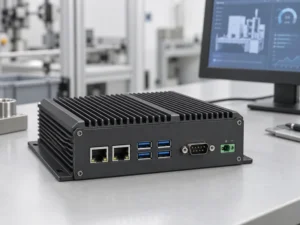
An embedded PC is a computer configured to work as part of a machine or larger …
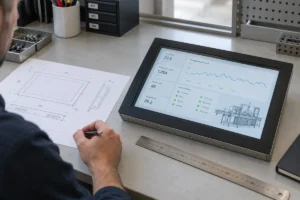
Start with the software the panel PC must run and the conditions it must fit. Then …
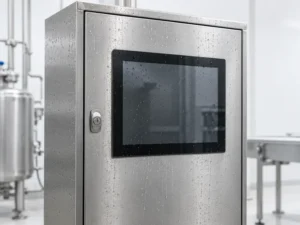
Choosing an industrial panel PC IP rating starts with two questions: what dust and water exposure …
Share your application, requirements, or current challenge. Our team will review the details and recommend a practical way forward.