What Is an Industrial Panel PC? Components, Types and Applications
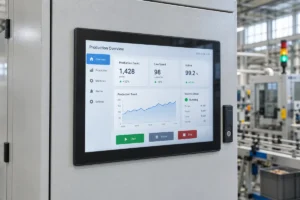
An industrial panel PC is a computer with a built-in display, usually a touchscreen, designed for …
Eagle Touch Engineering Team
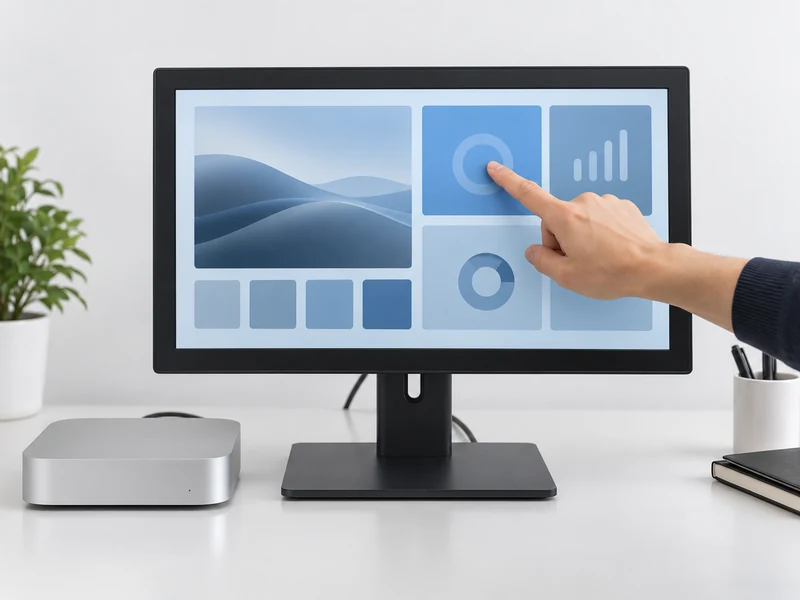
Yes, an external touch screen monitor can work with a Mac when its touch hardware and software support the intended macOS configuration. However, a monitor that displays the Mac desktop correctly may still have no working touch input.
Before choosing a touch screen monitor for Mac, check how touch is supported, whether a driver is needed, and which operations work in your application. “Mac compatible” on its own does not answer those questions.
This guide covers Mac mini, Mac Studio and MacBook computers running macOS. Compatibility with iPhones and iPads is a separate question.
Start with three connections: video, touch data and power. They may share a cable in some designs, but each function still needs a working path.
| Function | Typical connection | What to confirm |
|---|---|---|
| Video | HDMI, DisplayPort, or a suitable USB-C video connection | Supported resolution and refresh rate on both devices |
| Touch data | USB connection from the monitor’s touch interface to the Mac | A data-capable cable connected to the correct upstream or touch port |
| Power | Monitor power supply, or a supported USB-C power arrangement | Voltage, available power and the manufacturer’s wiring instructions |
With a typical HDMI touch monitor, HDMI carries the picture while a separate USB cable carries touch input. Connecting HDMI alone is not enough to operate the Mac by touching the screen.
A single USB-C cable is an option only when the monitor, Mac port and cable support the required video and USB data functions. Power must also be sufficient, or the display will need a separate supply. The connector’s shape does not establish these capabilities.
For the first setup, connect directly to the Mac where practical. Introduce the intended dock, hub or extension cable after basic operation is confirmed. This makes a connection problem easier to isolate.
If the picture works but touch does not, check the USB data connection before changing display settings. Then check the touch software’s device detection. A working video signal does not prove that the touch controller is connected.
For many external touch monitors, you do. Some configurations provide basic pointer-style input without additional software, but this should be confirmed for the exact product. Do not assume that Windows plug-and-play support also applies to macOS.
Commercial Mac touch solutions exist. For example, ViewSonic provides vTouch software for supported TD-series displays, including gesture functions. That is support for specified products and software—not a universal driver recommendation for other monitors.
For an industrial monitor, ask the supplier to identify the touch controller and its supported Mac software. Request these details before ordering:
Third-party software such as UPDD is another possible route for supported hardware. Its documentation separates communication with the touch controller from the software that translates touches into macOS actions. It also identifies software configuration and permissions as potential causes of failure. Follow the instructions for the actual package being installed. See Touch-Base’s macOS troubleshooting documentation.
For a company-managed Mac, involve IT before purchasing the sample. A technically suitable driver is of little use if the installation policy prevents it from running.
A successful click is a useful first check. It does not establish full multi-touch support.
Decide which actions the operator actually needs. A terminal with large buttons may only require tapping and dragging. An interactive map may also need pinch-to-zoom. A custom application may need simultaneous touch contacts rather than mouse events or translated gestures.
| Requirement | What to verify in the actual application |
|---|---|
| Tap and drag | Buttons respond once; sliders move continuously and release correctly |
| Right-click or long press | The intended menu opens using the configured action |
| Scrolling and zooming | The required gestures work inside the application, not just elsewhere on the desktop |
| Multiple simultaneous touches | The software receives the input type it expects |
| Portrait installation | Touch positions remain aligned after display rotation |
| Multiple displays | A touch affects the intended monitor, including its edges and corners |
A ten-point touch sensor does not, by itself, guarantee ten independent contacts inside a Mac application. Ask whether the proposed solution delivers pointer events, gesture shortcuts or application-level touch data.
Interface layout matters too. Small desktop menus can be awkward to operate with a finger even when tracking is accurate. Try the actual screen size and macOS scaling setting. Check the smallest frequently used control, rather than demonstrating touch only on a large button.
Use the sample to complete the operator’s normal task from start to finish. Launch the application, enter information, move through its screens and repeat the actions used most often.
Then restart the Mac and test sleep and wake. Confirm that the application and touch software recover without an unexpected manual step. Repeat the checks with the final cables, display arrangement and user account.
Keep a short record of the approved configuration: Mac model, macOS version, monitor model, touch controller, driver version and connection method. This gives purchasing and support teams something more useful than a general “works with Mac” note. Check software support before an OS upgrade and test the new version on one system before wider deployment.
For a quotation, send your supplier:
For equipment integration, explore Eagle Touch’s industrial touch monitor range. If the display must fit an existing enclosure, include its drawing and installation space with the enquiry.
Share your Mac configuration and application requirements with Eagle Touch so we can review a suitable display and touch configuration. Agree on the required functions and sample checks before committing to volume production.
An industrial panel PC is a computer with a built-in display, usually a touchscreen, designed for …
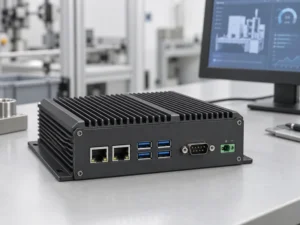
An embedded PC is a computer configured to work as part of a machine or larger …
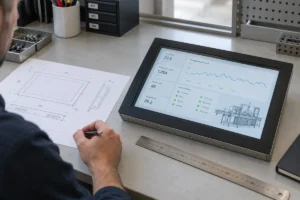
Start with the software the panel PC must run and the conditions it must fit. Then …
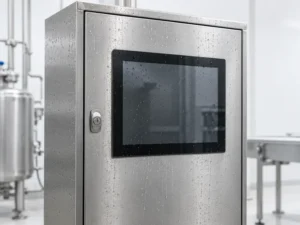
Choosing an industrial panel PC IP rating starts with two questions: what dust and water exposure …
Share your application, requirements, or current challenge. Our team will review the details and recommend a practical way forward.