What Is an Industrial Panel PC? Components, Types and Applications
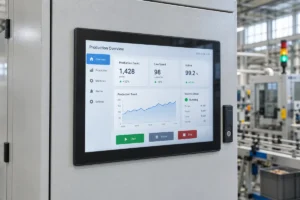
An industrial panel PC is a computer with a built-in display, usually a touchscreen, designed for …
Eagle Touch Engineering Team
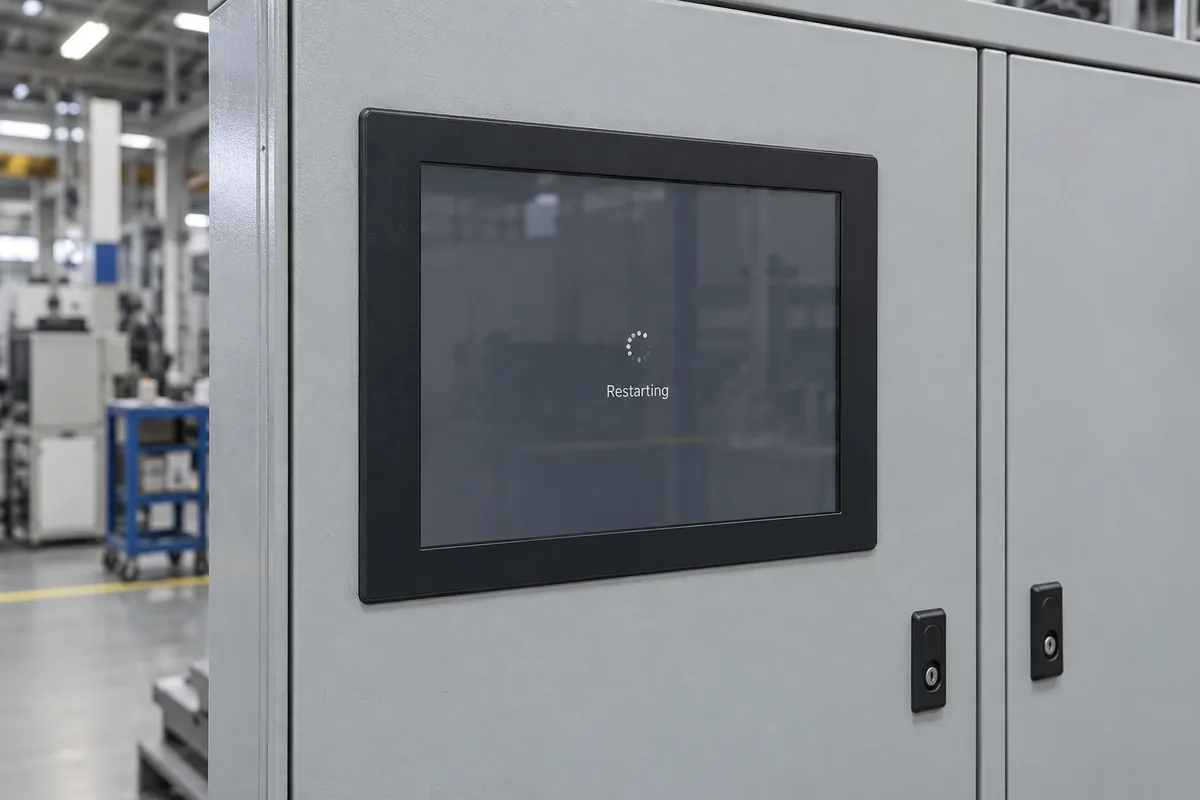
If an industrial panel PC keeps restarting, first establish whether the entire computer is rebooting. Then check the restart records and the conditions at the time of the fault. Input power, temperature, system crashes, watchdog resets and software-initiated restarts need different checks.
A panel PC that restarts when a motor starts needs a different investigation from one that reboots at the same time every night. Record that pattern before replacing parts or reinstalling the operating system.
Place the machine in its approved maintenance state before testing. Isolate power before changing connections; cabinet measurements on live circuits should be performed by qualified personnel.
Watch what happens from the first interruption until the interface returns. A firmware startup screen, a new operating-system boot record and a reset of system uptime help establish that the computer has restarted. Use more than one observation where possible.
If the display goes dark while the computer remains accessible and its uptime continues, follow the industrial display black screen troubleshooting guide. If only the HMI application reloads, investigate the application and its recovery service.
For a unit that no longer starts, use the panel PC not powering on checklist.
Note the exact time, what the machine was doing and whether anyone intervened. A forced restart after a freeze is different from a computer that resets by itself.
| Observed pattern | Where to investigate first |
|---|---|
| Restart when a motor, contactor or other load switches | Shared supply, voltage disturbances, grounding and cable routing |
| Restart after warming up or under heavier load | Temperature trend and available power under load |
| Similar interval between restarts | Watchdog timeout, recurring task or application behavior |
| Restart at the same clock time | Scheduled maintenance, updates or remote management |
| Blue screen or crash record before restart | Stop code, crash dump, drivers and associated hardware |
| Problem begins after a device or software change | New load, connection, driver, update or configuration |
These patterns choose a starting point; they do not identify a failed component. Keep a short incident log so that one coincidence does not become the diagnosis.
For Windows systems, open Event Viewer → Windows Logs → System and examine events around the incident. Export the relevant log before making changes.
| Windows event | What it tells you |
|---|---|
| User32, Event ID 1074 | A user or process initiated shutdown or restart; inspect the recorded process and reason. |
| Kernel-Power, Event ID 41 | The previous shutdown was not clean. This does not establish the cause. |
| EventLog, Event ID 6008 | The previous shutdown was unexpected; use its timing to investigate preceding events. |
Preserve any stop code and crash dump. Missing crash data does not prove a power failure: Windows may have been unable to write it. Microsoft’s Event ID 41 troubleshooting guidance explains these distinctions.
On Linux or Android, collect the available boot, kernel and application logs for the installed image. Previous-boot records may not be retained, so ask the system maintainer how logging is configured.
Compare the first incident with recent driver installations, OS updates, application releases and remote-management changes. Test one approved rollback or configuration change at a time. Avoid a blanket BIOS reset or OS reinstall that removes useful evidence and machine-specific settings.
Start with the input rating of the actual unit. Industrial panel PCs may use fixed DC input, wide-range DC input or direct AC input. An external adapter means the computer receives the adapter’s output, not mains AC. See the panel PC power input guide if the supply arrangement is unclear.
With power isolated, inspect plugs, terminal connections, cable retention and any external power or reset wiring. Vibration or cable tension can expose an intermittent connection.
For a DC-powered unit, have a technician capture voltage at the computer input while reproducing the fault. A normal reading at the cabinet supply, or with the computer disconnected, is insufficient. A multimeter may miss a brief dip; intermittent events may require appropriately rated waveform-recording equipment.
Check whether other loads share the supply and whether its available output supports the complete configuration at cabinet temperature. CPU, backlight and powered peripherals can change the load during operation.
Where permitted, compare a compatible known-good supply and then the cable, changing one item at a time. If switching equipment triggers the fault, investigate supply disturbances alongside grounding, shielding and routing. Do not disconnect protective earth as a diagnostic shortcut.
Record available component temperatures and the air temperature around the installed computer. Compare their trends with the restart time and workload. A warm housing alone does not prove overheating, and there is no universal number of minutes after which a reboot becomes a thermal fault.
Inspect the cooling arrangement used by that model:
Compare readings with the manufacturer’s limits for the relevant component or ambient condition; those limits are not interchangeable. If improved ventilation delays the fault, investigate further rather than treating an open cabinet door as a permanent repair.
A watchdog can reset the computer when software stops refreshing its timer. It may be operating correctly while exposing an application hang, excessive delay or configuration problem.
Ask the system integrator which program services the watchdog, what timeout is configured and whether a reset cause is recorded. Compare the restart interval with application startup, communication timeouts and periods of high load.
If testing requires a watchdog change, agree the procedure with the machine owner and restore the approved protection afterward. Permanently disabling it can leave an unresponsive terminal running without recovery.
Also review power-restoration behavior. A brief loss of supply followed by automatic power-on can look like a spontaneous reboot. Changing that setting does not correct the original interruption.
Use earlier findings to choose the next test. Run a manufacturer-approved memory diagnostic when crash information or repeatable failures suggest memory instability. Check storage diagnostics and relevant I/O errors before condemning an SSD; a normal health summary does not exclude every intermittent fault.
Back up the machine configuration and important data before invasive testing. Reseating or replacing internal parts should follow the supplier’s service procedure.
For recently added scanners, cameras, USB hubs or communication devices, test a permitted minimum configuration during maintenance. If stability returns, reconnect devices individually and reproduce the original workload. The cause may be the device, its cable, driver or added power demand.
Do not remove control or safety-related connections simply to see whether the reboot stops. Coordinate the isolation plan with the equipment integrator.
A successful boot is not enough. Repeat the workload, peripheral activity and equipment switching associated with the original fault. Restore the normal enclosure condition and allow temperatures to stabilize.
Choose an observation period that covers the previous failure pattern. Record the changed item, operating conditions and whether the fault returned. Several simultaneous changes may restore operation while leaving the cause unresolved.
If further support is needed, prepare:
For an Eagle Touch panel PC, send these details to our team so we can review the fault and advise the next check or service step.
An industrial panel PC is a computer with a built-in display, usually a touchscreen, designed for …
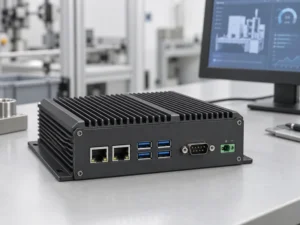
An embedded PC is a computer configured to work as part of a machine or larger …
Start with the software the panel PC must run and the conditions it must fit. Then …
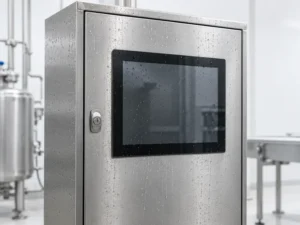
Choosing an industrial panel PC IP rating starts with two questions: what dust and water exposure …
Share your application, requirements, or current challenge. Our team will review the details and recommend a practical way forward.