Industrial Display Black Screen: 7 Causes, Fast Fix & How to Solve It Without Replacement
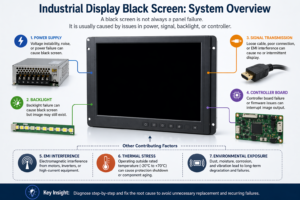
Quick Answer An industrial display black screen is typically caused by: Power supply instability LED backlight …
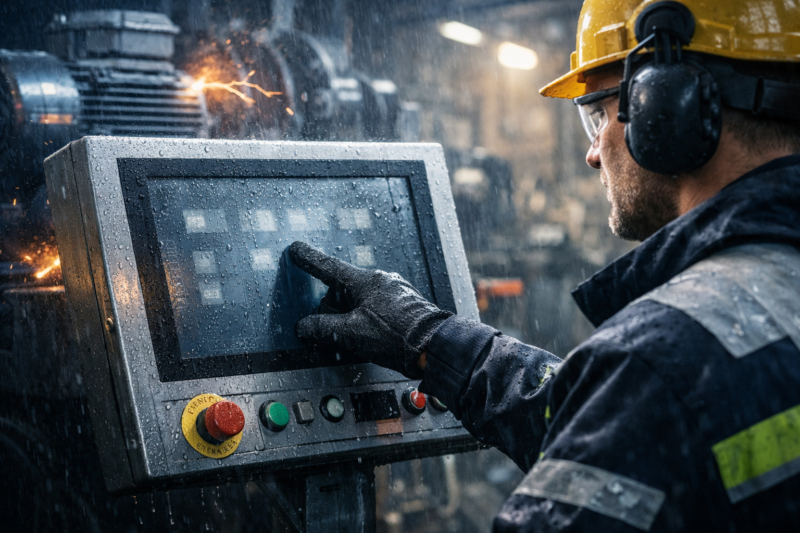
The LCD image is normal, but the industrial touch screen does not respond.
Use this troubleshooting checklist before replacing the screen. In many cases, the display signal is working, but the touch signal path has not been confirmed.
HDMI, VGA, DVI, DP, and LVDS usually carry the display signal only. Touch normally needs a separate USB, I²C, RS232, FPC, or controller-board connection.
In industrial projects, the same screen may work on the desk but fail after installation because the final machine changes the cable routing, grounding, power condition, enclosure pressure, firmware behavior, or electrical environment.
Follow the checklist below to check whether the issue is related to the screen, cable, controller, host system, software, firmware, or final machine installation.
If the LCD image is normal but the industrial touch screen does not respond, check the issue in this order:
| Step | Check | What It Tells You |
|---|---|---|
| 1 | LCD image status | Whether this is a touch-only issue |
| 2 | Impact, pressure, water marks, or loose parts | Whether handling, transport, or installation affected the unit |
| 3 | Touch signal connection | Whether USB, I²C, RS232, FPC, or another touch signal is connected correctly |
| 4 | Controller detection | Whether the host system can detect the touch controller |
| 5 | Cross test | Whether the failure follows the screen or stays with the machine |
| 6 | Test outside the machine | Whether installation, enclosure, cable routing, or machine environment affects touch |
| 7 | Power, grounding, and cable routing | Whether unstable power, noise, long cables, or poor grounding affects touch |
| 8 | Housing pressure | Whether frame, gasket, screws, or enclosure pressure affects the touch area |
| 9 | Software and firmware | Whether reboot behavior, driver, firmware, OS, or application status is involved |
| 10 | Replacement decision | Whether the result really points back to the screen, cable, or controller |
Use the checklist result to decide the next step:
| Checklist Result | Next Action |
|---|---|
| Failed screen works on another host | Check the original machine, OS, USB/I²C port, power, or grounding |
| Known-good screen also fails on the same machine | Check machine-side installation or system condition |
| Failed screen fails everywhere | Check the touch cable, FPC, controller board, or touch module |
| Touch works outside the machine but fails after installation | Check cable routing, grounding, enclosure pressure, gasket, and electrical noise |
| Touch recovers after reboot or USB reconnect | Check firmware, USB detection, driver loading, power management, or startup power |
Do not start by removing the touch screen.
First check the symptom:
If the LCD image is also abnormal, check the display signal, AD board, power supply, or mainboard first.
If the LCD image is normal but touch does not work, continue with the touch signal path.
Take a short video before changing anything. Show the LCD image, the touch action, and the machine status.
Before checking drivers or firmware, inspect the unit and the installation area.
A cracked cover glass or a broken LCD does not always mean the touch function has failed. Display and touch are usually separate parts of the system. However, visible damage may show impact, pressure, water ingress, or assembly stress.
Check:
For panel mount and open frame touch monitors, also check the mounting area. The touch may work before installation, but fail after assembly if the cable is pressed, the connector becomes loose, or the front frame adds pressure to the glass edge.
If the cover glass or LCD is damaged, do not stop at the visible damage. Continue checking the touch cable, controller detection, and cross-test result.
A normal image does not mean the touch signal is connected.
HDMI, VGA, DVI, DP, and LVDS usually carry the display signal only. Touch normally needs a separate signal connection, such as USB, I²C, RS232, FPC, or a controller-board connection.
Check:
This is a common miss in custom projects. The display works, so the product looks connected. But the touch signal may still be missing.
This article focuses on no touch response. If you also need to check other problems such as ghost touch, drifting points, wet touch, or low sensitivity, you can read our guide to capacitive touchscreen issues.
Next, check whether the system can see the touch controller.
For Windows:
For Android or Linux:
If the controller is not detected, start with:
If the controller is detected but touch still has no response, do a cross test.
Cross testing helps avoid wrong replacement.
Test like this:
Use the result to judge the direction:
| Test Result | Likely Direction |
|---|---|
| Failed screen works on another host | Original machine, OS, USB port, or grounding |
| Known-good screen also fails on the same machine | Machine-side issue |
| Failed screen fails everywhere | Screen, cable, FPC, or controller |
| Problem changes after cable replacement | Cable or connector |
| Problem changes after changing USB port | Host port or USB power |
The key question is simple: does the failure follow the screen, or does it stay with the machine?
If the screen worked on the desk but failed in the final equipment, remove it from the machine and test again.
Use:
Then compare the result.
| Result | What to Check Next |
|---|---|
| Touch works outside the machine | Installation, grounding, power, cable routing, housing pressure |
| Touch still has no response outside the machine | Cable, controller, or touch module |
| Touch works only after reboot | Firmware, USB detection, power, or OS behavior |
| Touch fails only in one machine design | Machine-side integration |
This step often makes the direction clear.
Desk testing is usually clean. The final machine is not.
Check on site:
If the screen works outside the machine but not inside it, check the machine environment before replacing the screen.
For new custom projects, these points should be reviewed together with the touch type, glass thickness, interface, and mounting design. You can also read our PCAP touch screen selection guide for early-stage design checks.
Some no-response problems come from the housing.
Check:
This is common in kiosks, EV chargers, vending machines, outdoor equipment, and industrial control panels.
A simple test:
Loosen the front frame slightly and test the touch again.
If the touch response changes, the problem is likely related to mechanical pressure, gasket position, or housing tolerance.
For outdoor or sealed equipment, optical bonding, front sealing, gasket compression, and cover glass thickness should be considered together. For outdoor display structures, see optical bonding for outdoor industrial displays.
If the touch works again after reboot, power cycling, or unplugging the USB cable, record it.
Check:
Possible directions include:
For industrial panel PCs, touch no-response can be related to the OS, motherboard firmware, driver, or application software. Do not check hardware only.
Replace the touch screen only when the checklist result points back to the screen.
Replacement is reasonable when:
Do not rush to replace the screen when:
If the root cause is machine-side integration, replacing the same touch screen may lead to the same problem again.
For faster support, send your supplier the completed troubleshooting checklist result together with:
This helps the supplier check whether the issue is related to the touch module, cable, controller board, firmware, host system, grounding, enclosure pressure, or final machine integration before replacing the screen.
For customized equipment, it is also useful to share the mounting drawing, cable routing, and enclosure design. These details help the supplier check whether a standard industrial touch screen monitor or a custom touch solution is more suitable for the application.
First check whether the LCD image is normal. If the image is normal, check the touch signal connection, controller detection, cable, and cross-test result.
Display and touch are usually separate signals. HDMI, VGA, LVDS, DVI, or DP can show the image normally, while touch still needs USB, I²C, RS232, FPC, or another touch connection.
It may be related to USB re-detection, controller reset, firmware loading, driver behavior, power management, or unstable startup power.
Test the same unit with a known-good cable, host, and power supply. If it still fails outside the final machine, the screen, controller, or cable is more likely to be the cause.
No. First check whether the failure follows the screen or stays with the machine. If it stays with the machine, replacing the screen may not solve the problem.
Quick Answer An industrial display black screen is typically caused by: Power supply instability LED backlight …
Introduction Industrial display flickering often appears unexpectedly in real deployments such as EV charging stations, factory …
Introduction Outdoor displays are designed for harsh environments, but outdoor industrial display overheating remains one of …

Introduction In OEM system design, touchscreen integration failures are often caused by incorrect assumptions about iOS …
Send your size, brightness, touch type, interface, mounting method, environment, and target quantity — early-stage projects are welcome.