What Is an Industrial Panel PC? Components, Types and Applications
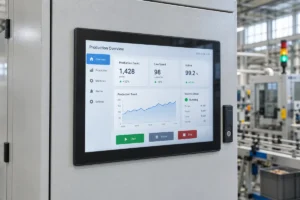
An industrial panel PC is a computer with a built-in display, usually a touchscreen, designed for …
Eagle Touch Engineering Team
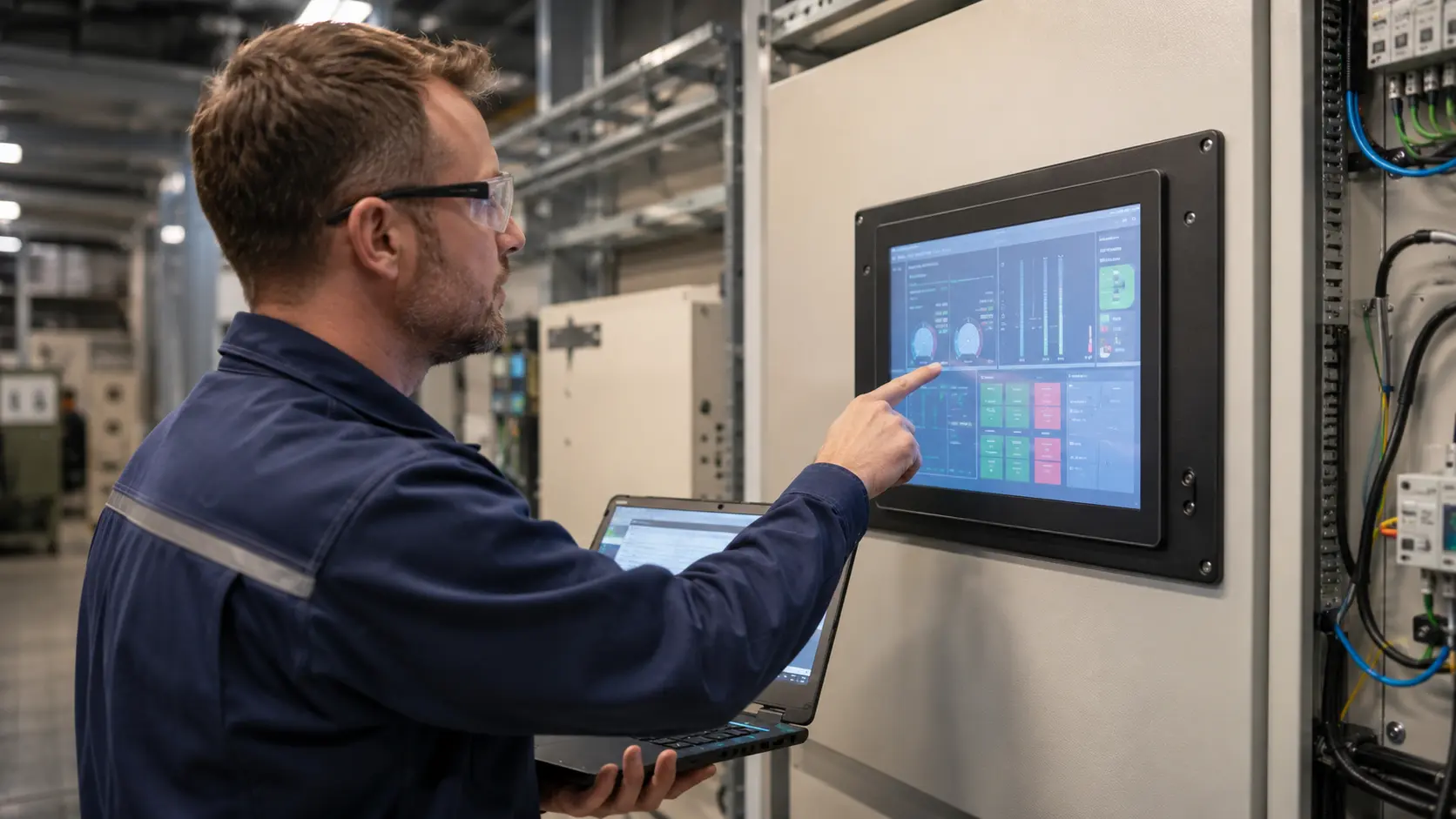
The LCD image is normal, but the industrial touch screen does not respond.
This does not automatically mean the touch panel is defective.
In an industrial touch system, the LCD and touch function normally use separate signal paths. HDMI, VGA, DVI, DisplayPort, LVDS, or eDP carries the image, while touch data usually travels through USB, I²C, UART, or RS232. An FPC may carry the touch signal between the sensor, controller, and mainboard.
That is why a monitor can display a perfect image while the touch function remains completely dead.
The right first step is not replacing the screen. It is isolating the fault:
Does the problem follow the touchscreen, or does it remain with the machine?
This checklist helps determine whether the fault is related to the touch cable, controller, host system, power supply, firmware, enclosure, or touchscreen itself.
If the LCD image is normal but the industrial touchscreen is not working, check it in this order:
| Step | Check | What the Result Tells You |
|---|---|---|
| 1 | Confirm the exact symptom | Whether this is really a no-response problem |
| 2 | Inspect and clean the surface | Whether water, residue, damage, or an obstruction is involved |
| 3 | Check the separate touch connection | Whether the touch signal reaches the host |
| 4 | Confirm controller detection | Whether the host can see the touch controller |
| 5 | Restart and check operating-system behavior | Whether the failure is related to startup, sleep, driver, or software |
| 6 | Use a known-good cable, port, and host | Whether the failure follows one component |
| 7 | Test outside the final enclosure | Whether installation changes the touch behavior |
| 8 | Check power, grounding, and cable routing | Whether electrical conditions affect the controller |
| 9 | Check frame, gasket, and mechanical pressure | Whether the enclosure is interfering with touch operation |
| 10 | Decide whether replacement is justified | Whether the evidence actually points to the touchscreen |
Do not change several conditions at once. Change one item, test again, and record the result.
Before removing cables or opening the machine, define the symptom.
Ask:
Use the symptom to choose the correct troubleshooting direction:
| Symptom | Correct Direction |
|---|---|
| LCD image is normal, but there is no touch response | Continue with this checklist |
| LCD is black or has no image | Check monitor power, backlight, display signal, AD board, or mainboard |
| Touch responds in the wrong position | Read the guide to industrial touch screen accuracy loss |
| The screen clicks by itself or reports random points | Check touch screen interference, grounding, and power noise |
| Touch works with a bare finger but not with gloves | Review industrial touch screen sensitivity adjustment |
| The problem affects the complete Panel PC, not only touch | Check the Panel PC system, operating system, power, and mainboard separately |
This distinction matters. A no-response fault, coordinate error, and ghost-touch problem may look similar to an operator, but they do not have the same causes.
Before changing anything, record a short video showing the LCD image, touch action, machine status, and any error message.
Start with the checks that do not require disassembly.
Power down the equipment according to the machine’s safety procedure, then inspect:
Clean and dry the surface using a soft microfiber cloth. Apply screen-safe cleaner to the cloth rather than spraying liquid directly onto the display. Detailed cleaning instructions are available in our guide to cleaning a touch screen monitor safely.
Surface contamination is not the most likely cause when a touchscreen is completely dead, but it should be ruled out first.
For PCAP touchscreens, water on the surface may cause false inputs, missed touches, or intentional touch rejection, depending on the controller firmware. If the screen is still completely unresponsive after it is clean and dry, continue with the signal-path checks.
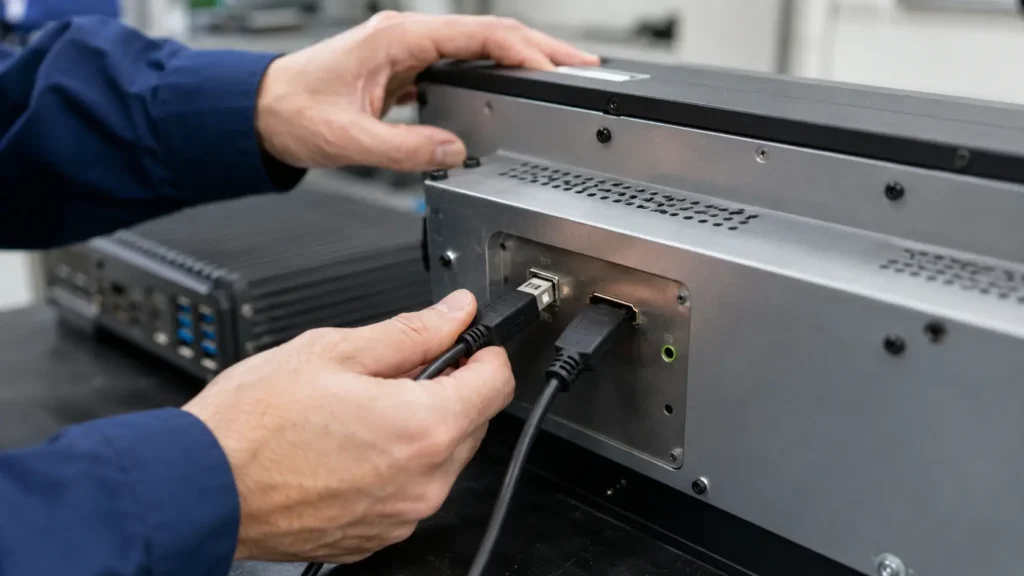
One of the most common mistakes is checking HDMI or VGA and assuming the touchscreen is also connected.
A normal image confirms the display path. It does not confirm the touch path.
Check whether the USB touch cable or serial touch cable is connected between the monitor and the host.
Confirm:
Whenever possible, test with a short, known-good touch cable connected directly to the host.
Check:
An FPC is only the physical connection. The underlying signal may be USB, I²C, or another interface, so the pin definition must match the controller and mainboard.
Confirm:
Do not disconnect or reconnect internal FPCs while the equipment is powered unless the product documentation specifically permits it.
The most useful early question is simple:
Can the host system see the touch controller?
If the controller is not detected, calibration and sensitivity adjustment are not the first solutions. The communication path must be restored before the system can process touch coordinates.
Open Device Manager and check for:
Then disconnect and reconnect the touch cable while watching Device Manager.
If no device appears or disappears, test:
If the device appears with an error, record the error code before reinstalling or changing drivers.
Confirm whether the touch controller appears as a USB or input device. For an embedded I²C design, check whether the controller is detected during startup and whether the correct driver and device configuration are loaded.
The exact method depends on the operating system and mainboard. The important point is to determine whether the controller is absent or present but not producing touch events.
| Detection Result | Likely Direction |
|---|---|
| Controller is not detected on any host | Cable, connector, controller board, controller power, or touch module |
| Controller is detected on another host | Original host port, operating system, driver, firmware, or power management |
| Controller is detected but produces no coordinates | Sensor connection, controller firmware, touch sensor, application, or system mapping |
| Controller appears only after reconnecting USB | Startup timing, controller reset, USB power, firmware, or host power management |
A restart is useful only when the result is observed.
Check whether touch returns after:
Record when the failure occurs:
If touch repeatedly returns after reconnecting USB, the problem is unlikely to be solved by replacing the glass alone. Check USB detection, controller reset, startup power stability, firmware loading, driver behavior, and host power management.
Calibration should not be treated as a general repair for a dead touchscreen. It is mainly relevant when the controller is detected and touch coordinates are present but inaccurate, particularly with resistive touch systems.
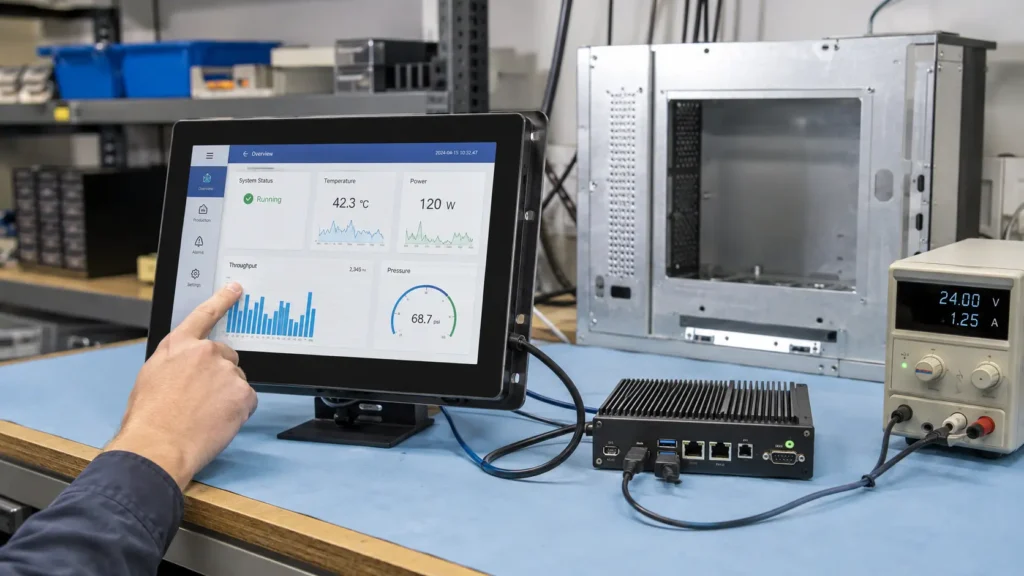
Random replacement wastes time because it changes too many variables.
Use a controlled cross test:
Interpret the result carefully:
| Test Result | What It Usually Indicates |
|---|---|
| Failed touchscreen works on another host | Original machine, port, OS, driver, power, or grounding |
| Known-good touchscreen also fails on the original machine | Machine-side or system-side fault |
| Failed touchscreen remains dead on every host | Cable, connector, controller board, FPC, or touchscreen module |
| Failure follows one cable | Cable or connector problem |
| Failure follows one controller board | Controller hardware or firmware problem |
| Several screens fail only in one machine design | Integration problem rather than multiple defective screens |
A cross test is more useful than replacing the most visible component.
A touchscreen may pass desktop testing and fail only after it is installed.
Remove the monitor or touch module from the final enclosure where practical and test it with:
Then compare the result.
Check:
Focus on:
This is often the test that separates a component fault from an integration fault.
Industrial equipment rarely provides the same clean electrical environment as a laboratory bench.
Check:
Electrical interference more often causes missed touches, unstable operation, or ghost inputs than a permanently dead controller. However, severe power noise, voltage drops, or controller resets can also produce intermittent no-response behavior.
If the problem changes when the power supply, grounding, cable position, or nearby load changes, use the dedicated touch screen interference checklist before replacing the panel.
If the touchscreen worked before installation but stopped after assembly, inspect the structure.
Check:
Mechanical pressure does not affect every touch technology in the same way.
For resistive touchscreens, continuous pressure can hold the conductive layers together and block normal input. For PCAP systems, incorrect frame contact, sensor deformation, conductive material near the active border, cable stress, or damage to the sensor and bonding structure may affect controller operation.
Do not simply loosen all screws and return the machine to service. If loosening the frame changes the result, review the gasket position, compression, mounting tolerance, glass support, and enclosure flatness.
Replace the touchscreen only when the test results point back to the touchscreen assembly.
Replacement is reasonable when:
Do not rush to replace the touchscreen when:
If the root cause remains inside the machine, installing another identical touchscreen may reproduce the same failure.
“Touch not working” is not enough information for an accurate diagnosis.
Send:
A good failure report allows the supplier to distinguish between a touchscreen defect and a machine-integration problem before parts are replaced.
The display and touch functions normally use separate connections. HDMI, VGA, DVI, DisplayPort, LVDS, or eDP may provide a normal image while the USB, I²C, UART, RS232, controller, or touch-sensor connection has failed.
Possible causes include a loose or damaged cable, power-only USB cable, unstable hub, faulty USB port, controller power failure, driver issue, controller-board fault, or damaged FPC. Test with a short known-good cable, another USB port, and another host.
Usually not. Calibration requires the system to detect touch coordinates. If the controller is not detected, check the connection, controller power, cable, driver, firmware, and controller hardware first.
This can indicate a USB enumeration problem, controller reset issue, startup timing problem, unstable power, driver-loading fault, or host power-management behavior.
The final installation may introduce frame pressure, gasket compression, cable stress, grounding changes, power noise, enclosure contact, or nearby electromagnetic interference.
Yes. The LCD and touch sensor are separate components in many designs. A damaged LCD may still have working touch, and a normal LCD may have no touch response. However, the impact that damaged the LCD may also have damaged the touch sensor, FPC, connector, or controller.
Replace it when the failure follows the same touchscreen during controlled cross testing and remains after the cable, host, port, power supply, controller connection, and installation conditions have been ruled out.
An industrial touch screen that does not respond is not automatically a defective touch panel.
The quickest reliable diagnosis is to answer three questions:
These three results usually show whether the fault is on the touchscreen side or the machine side.
For OEM projects, this distinction matters. Replacing one screen may solve a component failure. It will not solve an enclosure, grounding, power, firmware, or cable-routing problem repeated across an entire production batch.
If you are developing or upgrading industrial equipment, Eagle Touch can review the touch interface, controller, cover glass, mounting structure, cable routing, grounding conditions, and operating environment as one system.
Explore our custom touchscreen solutions for OEM equipment or send the model number, failure video, installation photos, interface type, and cross-test results to our engineering team.
We will help determine whether the fault is in the touchscreen, controller, cable, host, or final machine before recommending replacement.
An industrial panel PC is a computer with a built-in display, usually a touchscreen, designed for …
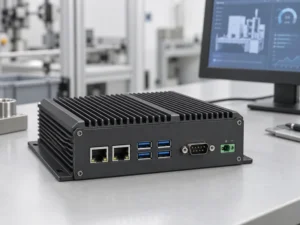
An embedded PC is a computer configured to work as part of a machine or larger …
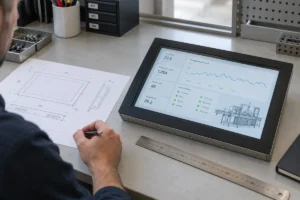
Start with the software the panel PC must run and the conditions it must fit. Then …
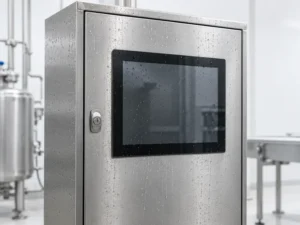
Choosing an industrial panel PC IP rating starts with two questions: what dust and water exposure …
Share your application, requirements, or current challenge. Our team will review the details and recommend a practical way forward.