What Is an Industrial Panel PC? Components, Types and Applications
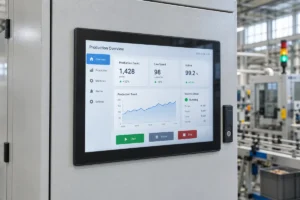
An industrial panel PC is a computer with a built-in display, usually a touchscreen, designed for …
Eagle Touch Engineering Team
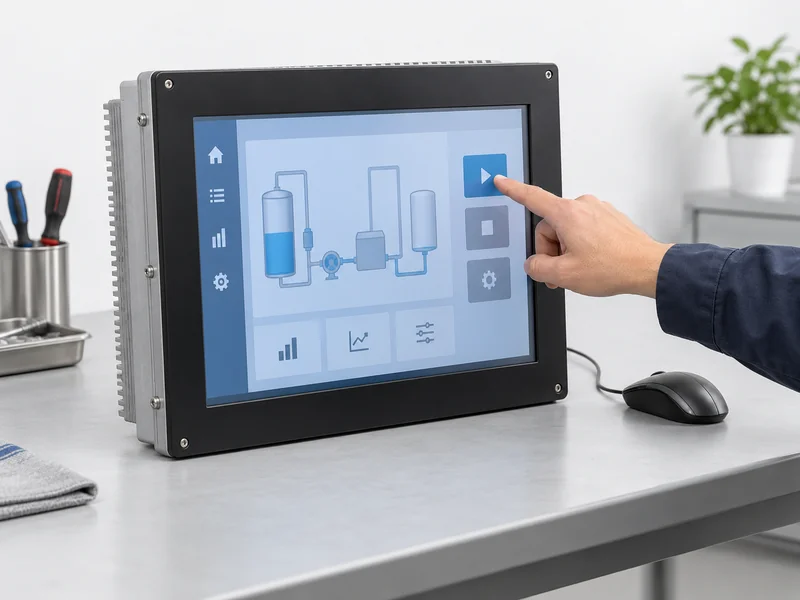
If your industrial panel PC touch screen is not working, first check whether the computer still responds to a mouse or keyboard. Then confirm whether the operating system detects the touch controller and receives touch input. These checks help separate a touchscreen fault from a frozen system or an application problem.
A panel PC contains the computer, display and touch system in one enclosure. A working picture does not prove that its touch input is working, and an unresponsive HMI button does not prove that the touch sensor has failed.
Before restarting or testing controls, put the machine into its approved maintenance state. Record the symptom first; restarting may remove useful evidence.
Connect a known-good mouse or keyboard, where permitted. Check whether the pointer moves, another window opens, and the displayed information continues to update. A stationary process value alone does not establish that the computer has frozen.
| What you observe | Where to investigate first |
|---|---|
| Mouse works and the screen updates, but touch does nothing | Touch device detection and input |
| Touch works outside the HMI application | Application state and input configuration |
| Mouse and touch fail, and the interface stops updating | Application or operating-system freeze |
| Panel PC does not start | Power and startup fault |
| Touch registers in the wrong place or creates unwanted inputs | Mapping, calibration or interference |
These observations choose a direction; they do not identify a failed component by themselves. If the unit cannot start, use the industrial panel PC power-on troubleshooting guide.
For a separate monitor connected to an external computer, follow the industrial touch screen not responding checklist. Its external cable tests differ from checks inside an integrated panel PC.
“Touch stopped working” is less useful than “touch stopped working after we restored the system image.” Establish what happened immediately before the fault.
| When it happens | What to compare |
|---|---|
| After a system restore or mainboard replacement | Image version, board revision and touch driver |
| After a software update | Previous and current driver, OS and application versions |
| After sleep or standby | Device detection before sleep and after wake |
| After several hours | Temperature, system load and disconnect logs |
| When nearby machinery starts | Timing of the fault, power changes and electrical noise |
| After transport or maintenance | Connections and assembly disturbed during that work |
Also record whether one unit or several are affected. Several units failing after the same image deployment make that shared change worth checking first. One affected unit still requires comparison testing; it does not automatically mean defective hardware.
Work through these three stages in order. A controller can appear in the device list without delivering usable touch input.
On Windows, open Device Manager and inspect Human Interface Devices for the touchscreen entry. Microsoft documents this under enabling and disabling a touchscreen. Record any disabled device, warning symbol or error code. Some designs use a vendor-specific device or serial interface, so confirm the expected entry with the supplier.
On Linux or Android, ask the technician to check startup logs and the expected input device. A USB device list will not identify a touchscreen connected through I²C.
If the controller is absent, investigate its driver, configuration, communication path and power. Calibration cannot restore communication with a missing device.
Use a supplier-approved touch test utility to check whether touching the screen produces input events. For Linux or Android, a technician can follow the official Linux input or Android input diagnostic documentation.
If no events appear, confirm that the test targets the correct device and has the required access before blaming the hardware. Missing events can involve the sensor connection, controller, firmware or driver path.
If events appear but the interface does not react, move to display mapping and application handling.
In an approved maintenance session, compare the HMI application with a desktop control or independent test program. Check for a hidden dialog, an overlay intercepting input, or an application that has stopped responding.
If touch works elsewhere, investigate the application first. Mouse operation alone is not conclusive because software can handle mouse and touch events differently. On systems with an additional display, also check where touch input is assigned.
Use the timing recorded earlier to select a test. Avoid changing the driver, power settings and firmware together; you will lose track of which change mattered.
Compare the installed software with the configuration approved for that hardware revision. An image that boots successfully may still lack the correct touch driver or board configuration.
Before restoring an approved image, back up application settings, licences and machine configuration. Arrange the test with the equipment owner. Do not load firmware intended for a similar-looking touchscreen.
Compare controller detection before and after wake. Record whether an OS restart restores touch, or whether a complete shutdown and power cycle is required.
USB power management includes suspend and resume behaviour, but a wake-related failure does not by itself prove that a power setting is wrong. Have the supplier review the applicable driver, controller firmware and resume sequence. Treat recovery after restarting as evidence, not a permanent repair.
Record the time to failure, temperature readings, application load and any device-disconnect messages. Compare against the unit’s specified operating conditions. Failure after warming up warrants thermal investigation, but can also coincide with software or power problems.
If the fault follows a motor, inverter or other load switching, use the touch screen interference guide for controlled comparisons. Do not disconnect protective earth as a diagnostic shortcut.
Internal inspection becomes reasonable when the fault follows maintenance, the controller remains missing after configuration checks, or other evidence points to an internal connection.
Have qualified personnel follow the manufacturer’s isolation and service procedure. Depending on the design, they may inspect the internal USB, I²C or serial connection, controller power, connector locks, and cables trapped during reassembly.
The touchscreen does not necessarily connect directly to a standard USB socket. Pin assignments and electrical levels must match the actual design. Do not hot-plug internal ribbon cables or connect an unknown interface to an external PC.
Ask the supplier whether the sensor, controller and display assembly are separately serviceable. Opening a sealed front assembly may require resealing and verification before return to service.
Choose the next action from the evidence collected.
| Finding | Next action |
|---|---|
| Touch works in other programs | Investigate the HMI application and input handling |
| Fault follows a software change | Validate the approved software configuration |
| Connection or controller power fault is confirmed | Repair the affected connection or circuit |
| Approved testing identifies a sensor or controller fault | Confirm compatible component repair or replacement |
| Several units fail under the same site condition | Investigate the shared installation or configuration |
A touch fault does not automatically require a complete panel PC replacement. Serviceability, bonding construction, spare parts and downtime requirements determine the practical repair route.
Before contacting the supplier, prepare the model and serial number, OS/image version, number of affected units, controller status, a short video and test results. State exactly what restores operation and how long it stays working.
If a standard replacement is suitable for the application, you can also compare our standard industrial panel PCs across different screen sizes, computing platforms, touch technologies, and mounting options.
For an Eagle Touch panel PC, send these details to our team. They provide a starting point for reviewing the fault and the available service options before replacement parts are selected. If the existing unit needs replacement rather than repair, you can also review our industrial panel PC solutions for available Windows, Linux and Android configurations.
An industrial panel PC is a computer with a built-in display, usually a touchscreen, designed for …
An embedded PC is a computer configured to work as part of a machine or larger …
Start with the software the panel PC must run and the conditions it must fit. Then …
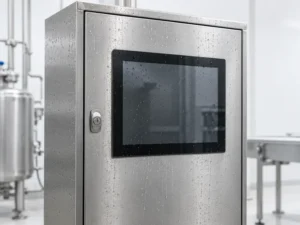
Choosing an industrial panel PC IP rating starts with two questions: what dust and water exposure …
Share your application, requirements, or current challenge. Our team will review the details and recommend a practical way forward.